So by now most people have heard about GrowthBook and their awesome stats engine and report building features. But in most organisations switching from experimentation platform can be quite the challenge; wouldn’t it be nice if you could start monitoring your experiment data and even conduct the experiment analysis in GrowthBook while the actual experiment still runs in Optimizely, Convert or any other tool that you are currently using?
Requirements:
Experiment data in BigQuery. Almost all experiment tools offer an integration with Google Analytics and once you have that integration it’s an easy step to connect Google Analytics with BigQuery.
Benefits from starting to monitor and analyse your experiments in GrowthBook:
- Monitoring and analysing on first party data (your own unsampled raw data).
- First-rate health checks like SRM and ME.
- Use webhooks for automated notifications for negative/positive effects.
- Endless metrics options
- Add metrics even after your experiment has stopped
- Extremely robust Frequentist & Bayesian stats engines
- Reduce the time it takes to analyse and report
Preparing GrowthBook for Optimizely Experiment data
So when you have your GrowthBook account the first thing you want to do is set up a BigQuery integration because that’s the data source where GrowthBook will be running the queries on.
That’s right, GrowthBook will not import your BigQuery data. It has a native integration so your data will always remain in BigQuery and GrowthBook will only store the aggregated data. So, that should ease your mind for any legal worries.
Setting up a connection between GrowthBook and BigQuery is easy simply follow this guide:
https://docs.growthbook.io/guide/bigquery
Adjust the Experiment Assignment Queries
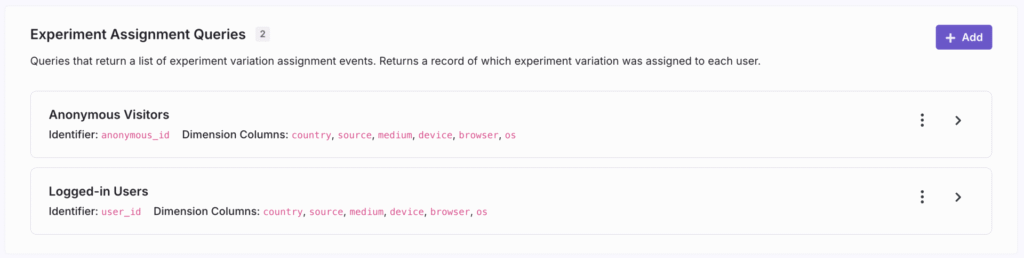
Right after you’ve connected GrowthBook with BigQuery you get these queries from GrowthBook. One for anonymous visitors and one for logged-in visitors. Go into these queries by clicking edit on the dots. Then click the customize SQL button.
Then we are going to change lines 5, 19, 20 and 21.
Change variation_id_param.value.int_value to variation_id_param.value.string_value
Change the event_name “experiment_viewed” to “optimizely-decision-web”
Change experiment_id_param.key “‘experiment_id” to “optimizely_experiment”
Change variation_id_param.key “variation_id” to “optimizely_variant”
Before:

After:

Before you do this, please verify in Google Analytics if your optimizely event name and event parameters are the same as shown here and if they record data correctly already. To do this, go to the general events report, filter for the optimizely-decision-web event, and then check if the parameters exist.
Once you’ve made the changes, click the test query button, and if everything is working correctly, a table with results should appear below your SQL query.
Repeat these steps for the other experiment assigning query for logged-in users.
Create an experiment in GrowthBook for Optimizely experiment data
Next, go to experiments in GrowthBook and click ‘Add’ and click ’Create new experiment’.

For the tracking key we are going to use the EXACT value for your Optimizely experiment id which is how it’s stored in Google Analytics which will be something like: (6042336170344448)
You can find your experiment id in Optimizely by going into your experiment and then from the URL you can copy the number that is behind experiment/

In the image the experiment id would be: 6229397288517632
So then the Tracking Key in GrowthBook would be: (6229397288517632)
Then you can fill out the rest of the fields as you like and continue to Traffic.

In the traffic step, make sure your number of variations and allocation (split) is the same as you’ve set in Optimizely. Then continue Targeting.

Here, you don’t need to do anything as the actual targeting happens off course in Optimizely. Just continue to the last step, Metrics.

Select the relevant assignment table for your experiment. In most cases, this would be the anonymous_id. Then, select the metrics you want in your analysis. If you didn’t create your fact tables and metrics, you won’t be able to select any metrics for your experiment; you need to do that first. If you need help with that, you can always consider hiring us. 🙂
When you’re done, click save, and your experiment is created. The only thing left is launching your experiment in GrowthBook.

Be prepared; data is coming
Once you’ve started your experiment you’ll see two new tabs in your experiment, results and health. To get the data from BigQuery, simply click the update button.
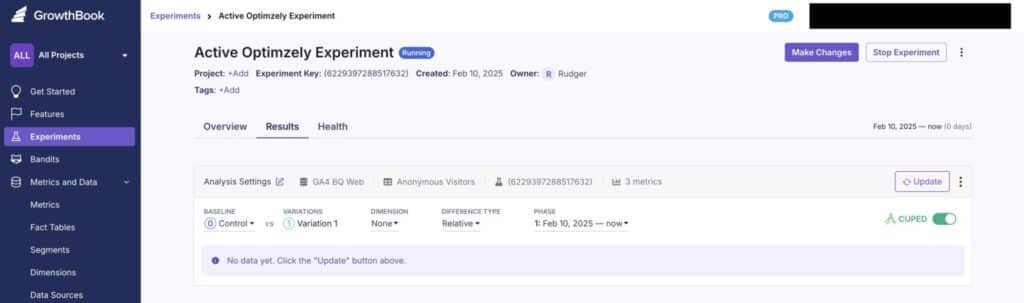
Note: the first time when you click update Growthbook will throw a notification that it doesn’t recognise the variation Id’s. This is because the Optimizely variation Id’s differ from the default GrowthBook ones.
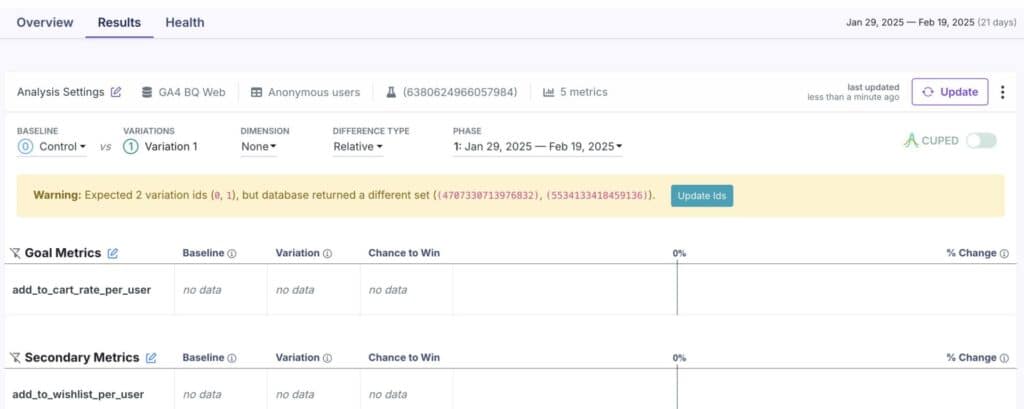
You can find your experiment id in Optimizely by going into your experiment, and then from the URL you can copy the number that is behind variation/

In the image the variation id would be: 4707330713976832
In Growthbook, just click the Update Ids button and select the corresponding variation Id’s. From the pull down menu.

And then there is data 🙂

And of course there are the health checks.

Yeah, that’s just great… I want this, but I’m currently using Convert, VWO, Kameleon or any other tool?!
Don’t worry; we are here to help. Just connect with us on Linkedin and send us a dm:
https://www.linkedin.com/in/rudgerdegroot/
Once we are connected, we can send you the info to adjust the experiment assigning query accordingly.